How to Reset AirPods From a Previous Owner
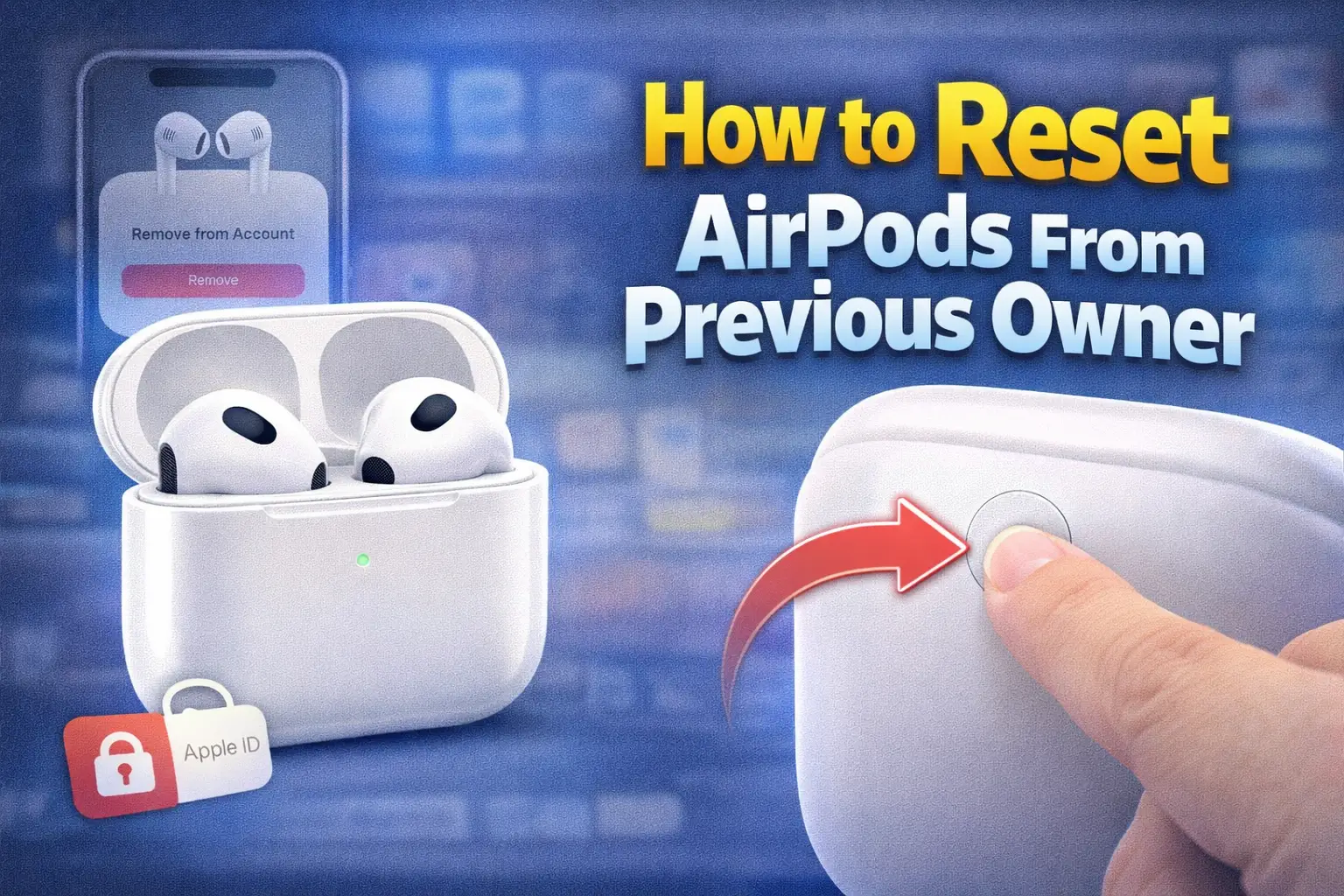
Buying or receiving AirPods from someone else can save money, but many users face a common problem. The AirPods are still linked to the previous owner’s Apple ID. This can cause pairing issues, connection errors, or messages saying the AirPods are owned by someone else. If this happens, you may not be able to use the AirPods properly until they are fully reset and removed from the previous owner’s account.
This article explains how to reset AirPods from a previous owner and It is written for general users who may not understand technical terms. You will learn why AirPods stay linked, what problems this causes, how to remove the previous owner, and what to do if you cannot contact them. By the end of this guide, you will clearly understand what steps to take.
Why AirPods Stay Linked to the Previous Owner
AirPods are connected to an Apple ID through a feature called Find My. When someone sets up AirPods with their iPhone, the AirPods become linked to that person’s Apple ID automatically.
This link is meant to protect the owner if the AirPods are lost or stolen. However, it can cause problems when AirPods are sold or given away without being properly removed from the account.
Even if you reset AirPods normally, they may still remain linked to the previous owner’s Apple ID if Find My was not turned off.
Common Problems When AirPods Are Still Linked
When AirPods are still connected to a previous owner, you may face several issues.
You may see a message saying “AirPods are linked to another Apple ID”.
You may not be able to connect them fully to your iPhone.
Some features may not work correctly.
You may be blocked from using Find My with your own Apple ID.
In some cases, AirPods may automatically reconnect to the previous owner’s devices.
These problems can be frustrating, especially if you paid for the AirPods.
Important Things to Know Before Resetting
Before starting, it is important to understand one key point.
You cannot fully remove AirPods from a previous owner’s Apple ID without their help.
A normal reset removes Bluetooth pairing, but it does not remove the Apple ID link if Find My is active.
If you are in contact with the previous owner, the process is much easier. If not, options are limited.
Step 1: Ask the Previous Owner to Remove AirPods From Their Apple ID
The best and safest solution is to ask the previous owner to remove the AirPods from their Apple ID.
They can do this remotely, even if they do not have the AirPods with them.
Here is how the previous owner can remove AirPods using an iPhone or iPad.
They need to open Settings on their device.
Tap on their Apple ID name at the top.
Tap Find My.
Tap Devices.
Select the AirPods from the list.
Tap Remove This Device.
Confirm the removal.
Once this is done, the AirPods are no longer linked to their Apple ID.
Step 2: Reset the AirPods Normally After Removal
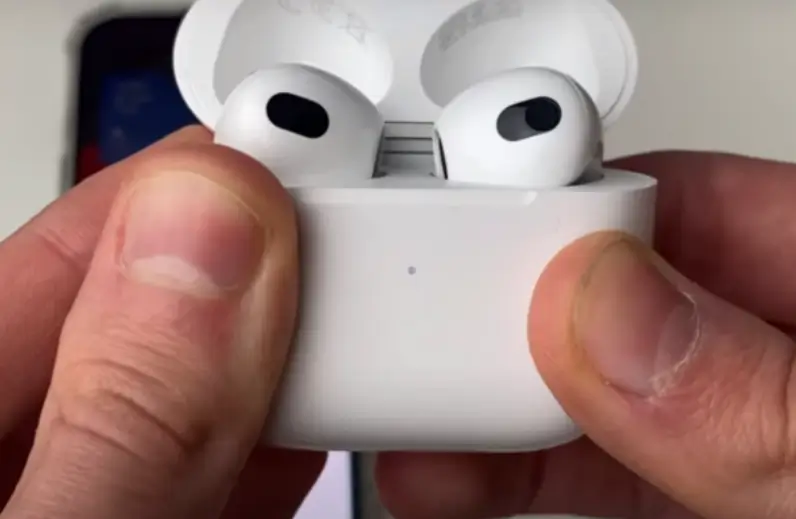
After the previous owner removes the AirPods from their account, you should reset the AirPods to clear old connections.
Place both AirPods in the charging case.
Close the lid and wait about 30 seconds.
Open the lid.
Press and hold the setup button on the back of the case for about 15 seconds.
The light will flash amber and then white.
Release the button.
Now the AirPods are fully reset and ready to be set up with your Apple ID.
How to Set Up AirPods as a New Owner
After resetting, setting up AirPods is easy.
Turn on Bluetooth on your iPhone.
Open the AirPods case near your iPhone.
Follow the on-screen setup instructions.
Sign in with your Apple ID.
Once completed, the AirPods will be linked to your account.
What If You Cannot Contact the Previous Owner
This is the most difficult situation and happens often with second-hand purchases.
If the previous owner does not respond or cannot be contacted, there are limitations.
Apple does not remove Apple ID locks without proof of ownership.
Even Apple Support usually cannot help unless the original owner removes the AirPods themselves.
This is because the Apple ID link is a security feature.
Can Apple Support Remove the Previous Owner?
In most cases, Apple Support will not remove AirPods from a previous owner’s Apple ID.
They may ask for:
- Original purchase receipt
- Proof of ownership
- Original Apple ID details
If you bought AirPods used and do not have these, Apple Support is unlikely to unlock them.
This is why buying used AirPods from trusted sellers is very important.
How to Check If AirPods Are Still Linked
You can check if AirPods are linked by trying to set them up.
If you see a message saying the AirPods are linked to another Apple ID, they are still locked.
If setup completes normally and Find My works with your Apple ID, they are free.
Difference Between Resetting and Removing From Apple ID
Many users think resetting is enough, but there is a difference.
Resetting clears Bluetooth and pairing data.
Removing from Apple ID clears ownership and Find My lock.
You need both steps to fully reset AirPods from a previous owner.
What Happens If You Use AirPods Without Removing Apple ID
Sometimes AirPods may still work partially.
You might be able to listen to music.
But Find My will not work properly.
Some features may be limited.
Future updates or resets may fail.
This is not recommended for long-term use.
Tips Before Buying Used AirPods
To avoid problems in the future, follow these tips.
Always ask the seller to remove AirPods from their Apple ID before paying.
Test the AirPods during setup.
Avoid sellers who refuse to remove the Apple ID.
Buy from trusted platforms or local sellers.
Keep proof of purchase.
Can Factory Reset Remove the Previous Owner?
No, a factory reset alone cannot remove the Apple ID lock.
Only the previous owner can remove AirPods from their Apple ID.
This is an important security rule set by Apple.
Are All AirPods Affected the Same Way?
Yes, this applies to:
- AirPods 1
- AirPods 2
- AirPods 3
- AirPods Pro
- AirPods Max
All models use Apple ID linking through Find My.
What If AirPods Were a Gift
If AirPods were gifted and already set up, the giver must remove them from their Apple ID.
After removal, you can reset and use them normally.
Final Thoughts
Resetting AirPods from a previous owner is not always simple, but it is possible if the correct steps are followed.
The most important step is removing the AirPods from the previous owner’s Apple ID. Without this, a full reset is not possible.
If you are buying used AirPods, always check their status before completing the purchase. This saves time, money, and frustration.
By following this guide, even non-technical users can understand the process clearly and avoid common mistakes.
If the previous owner cooperates, the reset process is quick and smooth. If not, it is best to avoid using locked AirPods and look for a proper solution.
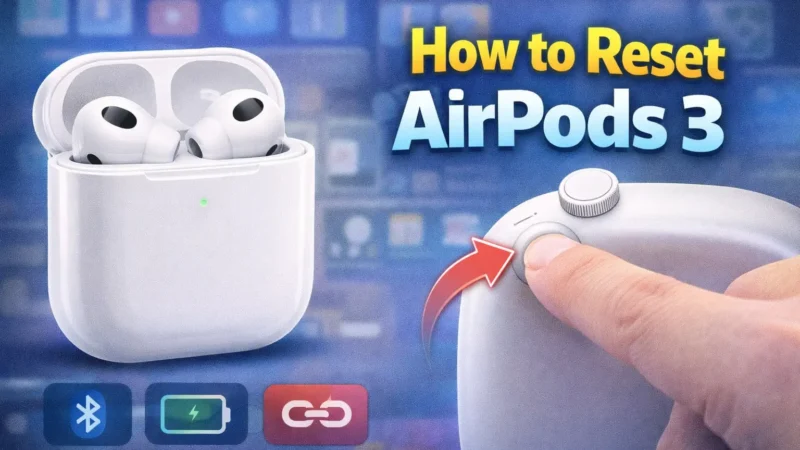
Check: How to Reset AirPods 3