


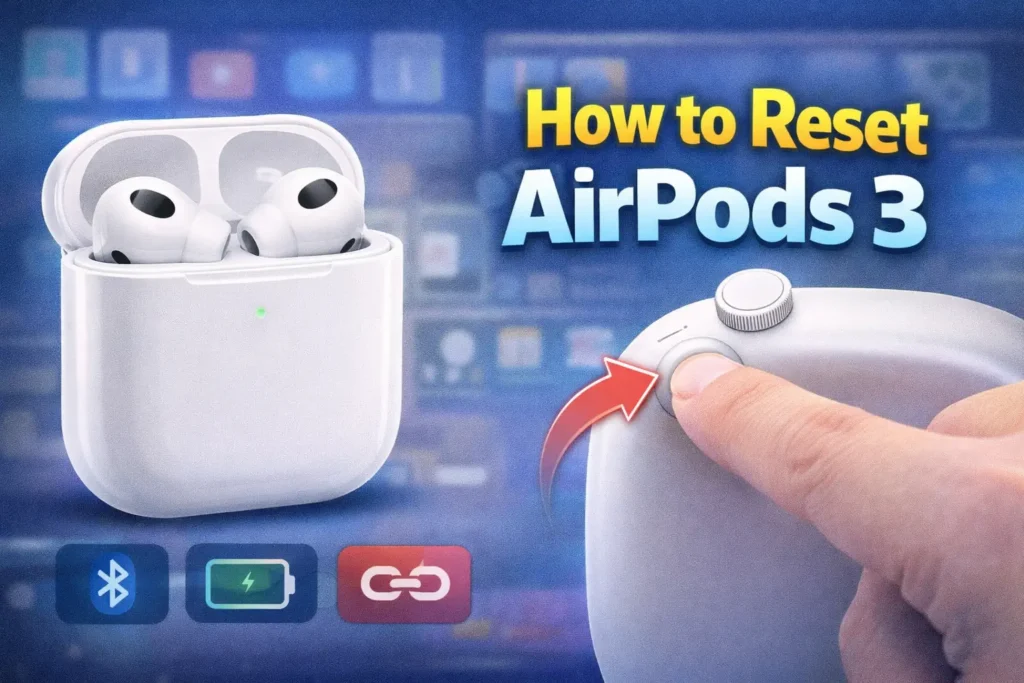
Apple AirPods 3 are popular wireless earbuds known for their good sound quality, comfort, and smooth connection with Apple devices. Most of the time, AirPods 3 work without any problems. But sometimes, users face issues like connection errors, sound problems, battery glitches, or pairing failures. In such cases, resetting your AirPods 3 is often the best and fastest solution.
This article explains how to reset AirPods 3 and it is written for beginners and general users who may not be tech experts. You will learn what resetting means, when you should reset your AirPods, how to reset them step by step, and what to do after resetting. By the end of this guide, you will be able to fix most common AirPods 3 problems on your own.
What Does Resetting AirPods 3 Mean?
Resetting AirPods 3 means restoring them to their original factory settings. This removes all saved connections and settings from the AirPods. After a reset, the AirPods behave like they are brand new and have never been connected to any device before.
When you reset AirPods 3:
- All Bluetooth connections are deleted
- Pairing information is removed
- Small software glitches are cleared
- The AirPods are ready to be set up again
Resetting does not damage your AirPods. It is a safe process recommended by Apple when problems occur.
Why You Might Need to Reset AirPods 3
There are many common situations where resetting AirPods 3 helps. Below are the most frequent reasons users reset their AirPods.
One common reason is connection problems. Sometimes AirPods do not connect properly to your iPhone, iPad, Mac, or other devices. They may keep disconnecting or fail to appear in the Bluetooth list.
Another reason is sound issues. You may hear sound only from one AirPod, or the volume may feel unbalanced. Audio may cut out randomly or sound distorted.
Battery problems are also common. The AirPods may drain too fast, show wrong battery levels, or not charge properly inside the case.
Sometimes AirPods do not respond to touch controls. The sensors may stop working or respond slowly.
You may also need to reset AirPods 3 if:
- You are selling or giving them to someone else
- You bought used AirPods
- They fail to pair with a new phone
- Software updates cause small bugs
In all these cases, resetting AirPods 3 often fixes the issue.
Things to Do Before Resetting AirPods 3
Before you reset your AirPods 3, it is a good idea to check a few simple things. Sometimes the problem can be fixed without a reset.
First, make sure your AirPods and charging case have enough battery. Low battery can cause pairing and sound issues.
Second, ensure Bluetooth is turned on on your device. You can turn Bluetooth off and on again to refresh the connection.
Third, check if your device software is up to date. An outdated iOS or macOS version can cause AirPods problems.
If these steps do not help, then resetting AirPods 3 is the right choice.
How to Reset AirPods 3 Step by Step


Resetting AirPods 3 is simple and takes only a few minutes. Follow the steps carefully.
First, place both AirPods inside the charging case. Make sure they are sitting correctly and the case is closed.
Wait for about 30 seconds. This allows the AirPods to fully disconnect from any active connection.
Now open the charging case lid. Keep the AirPods inside the case.
Next, locate the setup button on the back of the charging case. This is a small round button.
Press and hold the setup button for about 15 seconds. Do not release it too early.
While holding the button, look at the status light on the front of the case. The light will first flash white, then turn amber, and finally flash white again.
When the light flashes white again, release the button. This means the reset process is complete.
Your AirPods 3 are now fully reset.
How to Reconnect AirPods 3 After Reset
After resetting, your AirPods 3 are no longer connected to any device. You must set them up again.
To reconnect AirPods 3 with an iPhone or iPad, follow these steps.
Make sure Bluetooth is turned on on your iPhone or iPad.
Open the AirPods case lid while keeping the AirPods inside.
Hold the case close to your iPhone.
A setup animation will appear on your screen.
Tap Connect and follow the on-screen instructions.
Once completed, your AirPods 3 will be ready to use again.
To connect AirPods 3 with a Mac, go to Bluetooth settings, select AirPods 3 from the list, and click Connect.
How to Reset AirPods 3 Without an iPhone
You can reset AirPods 3 even if you do not have an iPhone.
The reset process using the charging case works the same way. You do not need any Apple device to perform the reset.
Once reset, you can connect the AirPods to Android phones, Windows computers, or other Bluetooth devices by using Bluetooth pairing mode.
Common Problems Fixed by Resetting AirPods 3
Resetting AirPods 3 can fix many everyday problems.
If only one AirPod is working, a reset often restores sound to both sides.
If the AirPods keep disconnecting, resetting clears connection conflicts.
If sound quality is poor or audio cuts out, a reset refreshes the internal software.
If touch controls stop responding, resetting may restore proper function.
If the AirPods do not appear in Bluetooth settings, a reset usually fixes this issue.
What to Do If Reset Does Not Work
In rare cases, resetting AirPods 3 may not fix the problem. If that happens, try these steps.
Clean your AirPods and charging case gently. Dirt and earwax can block sensors and charging points.
Try charging the AirPods and case fully using a different cable or charger.
Restart your phone or device and try pairing again.
If problems continue, contact Apple Support or visit an authorized Apple service center. There may be a hardware issue that needs professional repair.
How Often Should You Reset AirPods 3?
You do not need to reset AirPods 3 regularly. Resetting is only needed when problems occur.
Resetting too often is unnecessary, but it will not harm your AirPods.
Use reset only as a troubleshooting step, not as routine maintenance.
Difference Between Resetting and Forgetting AirPods
Some users confuse resetting AirPods with forgetting them in Bluetooth settings.
Forgetting AirPods removes them from one device only.
Resetting AirPods removes all connections from the AirPods themselves.
If you switch devices often or face serious issues, resetting is more effective than forgetting.
Tips to Avoid AirPods 3 Problems in the Future
To keep your AirPods working smoothly, follow these simple tips.
Always keep your AirPods clean and dry.
Store them in the charging case when not in use.
Avoid exposing them to extreme heat or moisture.
Keep your device software updated.
Charge them regularly to avoid deep battery drain.
Are AirPods 3 Reset Different from Other AirPods?
The reset steps for AirPods 3 are similar to AirPods Pro and AirPods 2, but there are small differences.
AirPods 3 do not have noise cancellation or ear tips, so settings are simpler.
The reset button process remains mostly the same across AirPods models.
Always check your model to follow correct instructions.
Can Resetting AirPods 3 Delete Apple ID Data?
Resetting AirPods 3 removes pairing information but does not delete your Apple ID.
However, if Find My is enabled, you should remove AirPods from your Apple ID before selling or giving them away.
This ensures privacy and security.
Resetting AirPods 3 Before Selling or Gifting
If you plan to sell or give your AirPods 3 to someone else, resetting is very important.
Resetting removes your personal settings and connections.
This allows the new owner to set them up easily.
Always reset AirPods before handing them over.
Final Thoughts
Resetting AirPods 3 is one of the easiest and most effective ways to fix common problems. It does not require technical skills and can be done in minutes.
Whether you are facing connection issues, sound problems, or pairing errors, a reset often brings your AirPods back to normal working condition.
By following this guide step by step, even first-time users can confidently reset and reconnect their AirPods 3.
If problems continue after resetting, professional support is always available, but in most cases, a simple reset is all you need.