How to Reset AirPods 1 – Easy Step-by-Step Guide for Beginners
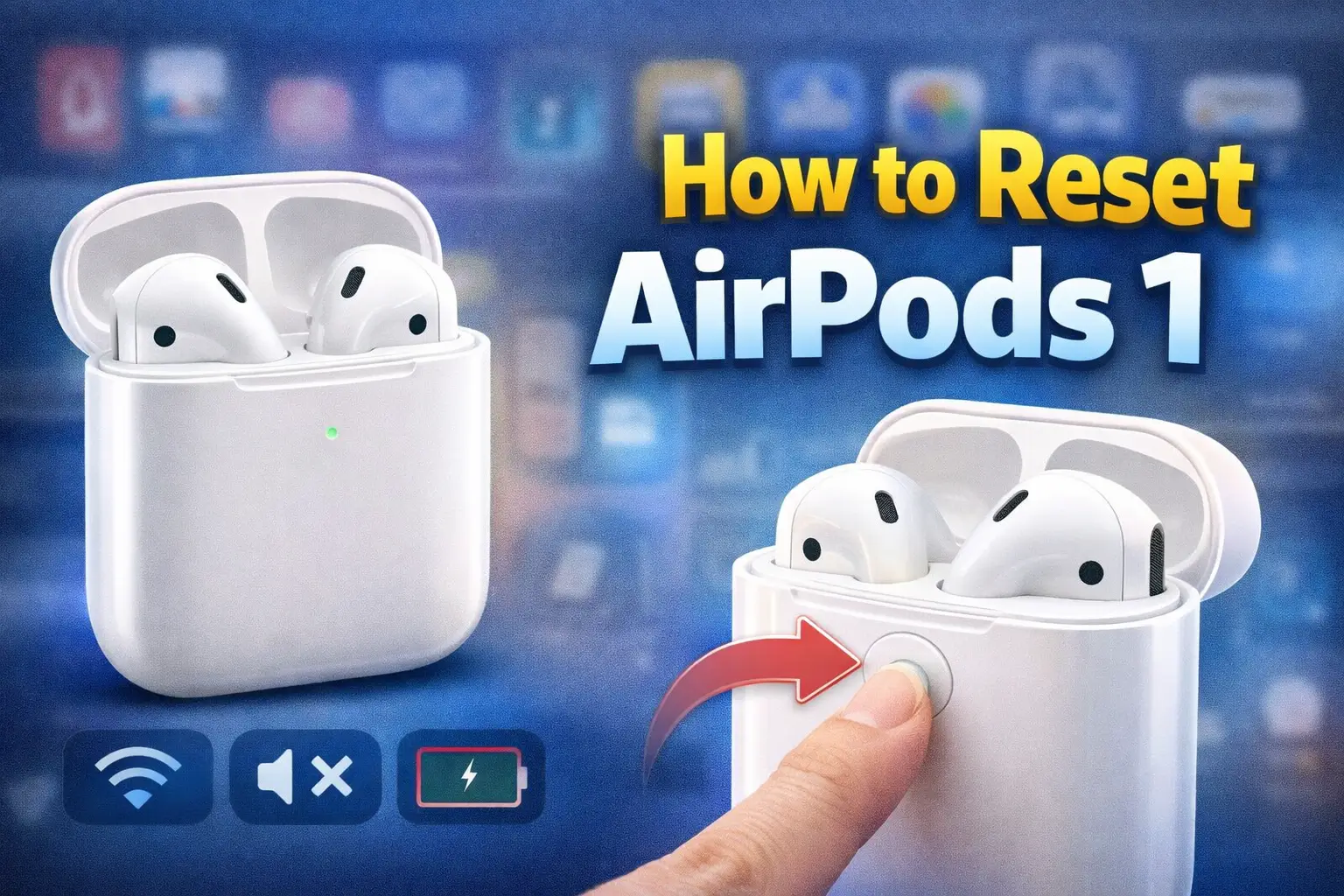
AirPods 1, also known as first-generation AirPods, are still used by many people around the world. They are simple, wireless, and easy to connect with Apple devices. However, like any electronic device, AirPods 1 can sometimes face problems such as connection issues, sound problems, or charging errors. In many cases, the best and easiest solution is to reset your AirPods.
It explains what resetting AirPods 1 means, when you should reset them, and how to reset AirPods 1 step by step. It also covers common problems, tips, and things to check after resetting. By the end of this article, you will clearly understand how to reset AirPods 1 and use them smoothly again.
What Does Resetting AirPods 1 Mean
Resetting AirPods 1 means returning them to their original factory settings. When you reset your AirPods, they forget all previous connections and settings. This allows you to connect them again as if they were new.
A reset does not damage your AirPods. It simply clears saved Bluetooth data and helps fix many common problems. After resetting, you can pair your AirPods again with your iPhone, iPad, Mac, or any other Bluetooth device.
When Should You Reset AirPods 1
There are several situations where resetting AirPods 1 is recommended. You do not need to reset them daily, but it is helpful when problems appear.
You should reset AirPods 1 if:
Your AirPods do not connect to your iPhone One AirPod is not working or has no sound Sound quality is poor or keeps cutting out AirPods keep disconnecting Your AirPods are connected but no sound plays AirPods are not charging properly You want to connect AirPods to a new device You are giving your AirPods to someone else
Resetting often solves these problems quickly and easily.
Things to Do Before Resetting AirPods 1
Before you reset your AirPods 1, there are a few simple checks you should do. Sometimes the problem can be fixed without a reset.
Make sure your AirPods case has enough battery Clean your AirPods and charging case gently Check if Bluetooth is turned on Restart your iPhone or device Update your device to the latest software
If the problem still continues after these steps, resetting AirPods is the next best option.
How to Reset AirPods 1 – Step by Step

Resetting AirPods 1 is very simple and takes only a few minutes. Follow these steps carefully.
First, place both AirPods inside the charging case. Make sure they are seated properly and the case lid is open.
Now, locate the setup button on the back of the charging case. This is a small round button used for pairing and resetting.
Press and hold the setup button for about 15 seconds. Do not release it too early.
While holding the button, watch the status light on the front of the case. It will first flash white and then turn amber.
When the light flashes amber and then white again, release the button. This means your AirPods 1 have been reset successfully.
Your AirPods are now ready to be set up again like new.
How to Reconnect AirPods 1 After Reset
After resetting, you need to pair your AirPods 1 again with your device.
To reconnect with an iPhone:
Unlock your iPhone Keep Bluetooth turned on Open the AirPods case near your iPhone A setup animation will appear on the screen Tap Connect
Follow the on-screen instructions. Once connected, your AirPods will work normally again.
To connect with other devices such as Android phones or laptops, go to Bluetooth settings, find AirPods, and pair them manually.
How to Reset AirPods 1 Without an iPhone
You do not need an iPhone to reset AirPods 1. The reset process is done using the charging case only.
Even if you are using Android, Windows, or another device, you can still reset AirPods by pressing and holding the setup button on the case.
Once reset, you can pair them with any Bluetooth-enabled device.
Common Problems Fixed by Resetting AirPods 1
Resetting AirPods 1 helps solve many common issues that users face.
Connection problems are often fixed after a reset. If your AirPods were not showing in Bluetooth settings, resetting usually helps.
Sound problems such as low volume, distorted sound, or no sound in one ear are also commonly fixed.
Charging issues, where one AirPod charges slower than the other, may improve after a reset.
If AirPods keep switching between devices or disconnecting, resetting helps create a stable connection again.
What to Do If Reset Does Not Work
Sometimes, resetting AirPods 1 may not fix the problem. If that happens, try these steps.
Clean the charging contacts carefully Try a different charging cable or adapter Charge the AirPods for at least 30 minutes Forget AirPods from Bluetooth settings and reconnect Restart your phone or device again
If none of these steps help, the issue may be related to battery wear or hardware damage.
How to Clean AirPods 1 Properly
Dirt and earwax can cause sound or charging issues. Cleaning your AirPods regularly can prevent problems.
Use a soft, dry cloth to clean the outside Use a soft brush or cotton swab for speaker grills Do not use water or liquid cleaners Clean the charging case gently
Clean AirPods carefully to avoid damage.
How Long Does Resetting AirPods 1 Take
Resetting AirPods 1 usually takes less than one minute. The full process, including reconnecting, may take two to three minutes.
It is a quick solution that can save time and frustration.
Will Resetting AirPods 1 Delete Anything Important
Resetting AirPods does not delete music or data from your phone. It only removes saved Bluetooth connections.
After reset, you can reconnect and use your AirPods normally without losing anything important.
Can You Reset Only One AirPod
No, AirPods work as a pair. You must reset both AirPods together using the charging case.
If one AirPod is not working, resetting the pair usually fixes the issue.
Resetting AirPods 1 Before Selling or Giving Away
If you plan to sell or give away your AirPods 1, resetting them is important.
A reset removes your device connection and ensures the new user can set them up easily.
Always reset AirPods before handing them to someone else.
Difference Between Resetting and Restarting AirPods
AirPods do not have a restart option like phones. Resetting is the only way to refresh their settings.
Resetting performs a full refresh and is more effective than simply reconnecting.
Battery Issues and Resetting AirPods 1
AirPods 1 are older models, so battery health may decrease over time.
If your AirPods drain quickly even after resetting, the battery may be worn out.
In such cases, resetting helps only slightly, and battery replacement or upgrade may be needed.
Tips to Avoid Frequent Resetting
To reduce the need to reset your AirPods often:
Keep AirPods clean Store them properly in the case Avoid using them with very low battery Update your device software Disconnect AirPods safely
Good care improves performance and lifespan.
Frequently Asked Questions About Resetting AirPods 1
Many users have common questions about AirPods 1 reset.
Do I need internet to reset AirPods No, internet is not required
Can I reset AirPods if the case is dead No, the case needs some battery power
Does resetting fix microphone issues In many cases, yes
Can AirPods 1 be reset multiple times Yes, resetting does not harm them
Final Thoughts
Resetting AirPods 1 is a simple and effective solution for many common problems. Whether you are facing connection issues, sound problems, or pairing errors, a reset can often fix them quickly.
By following the steps explained in this guide, even a beginner can reset AirPods 1 without stress. Using simple English instructions and helpful tips, this article aims to make the process clear for everyone.
With proper care and occasional resetting, your AirPods 1 can continue to provide reliable performance for daily use.