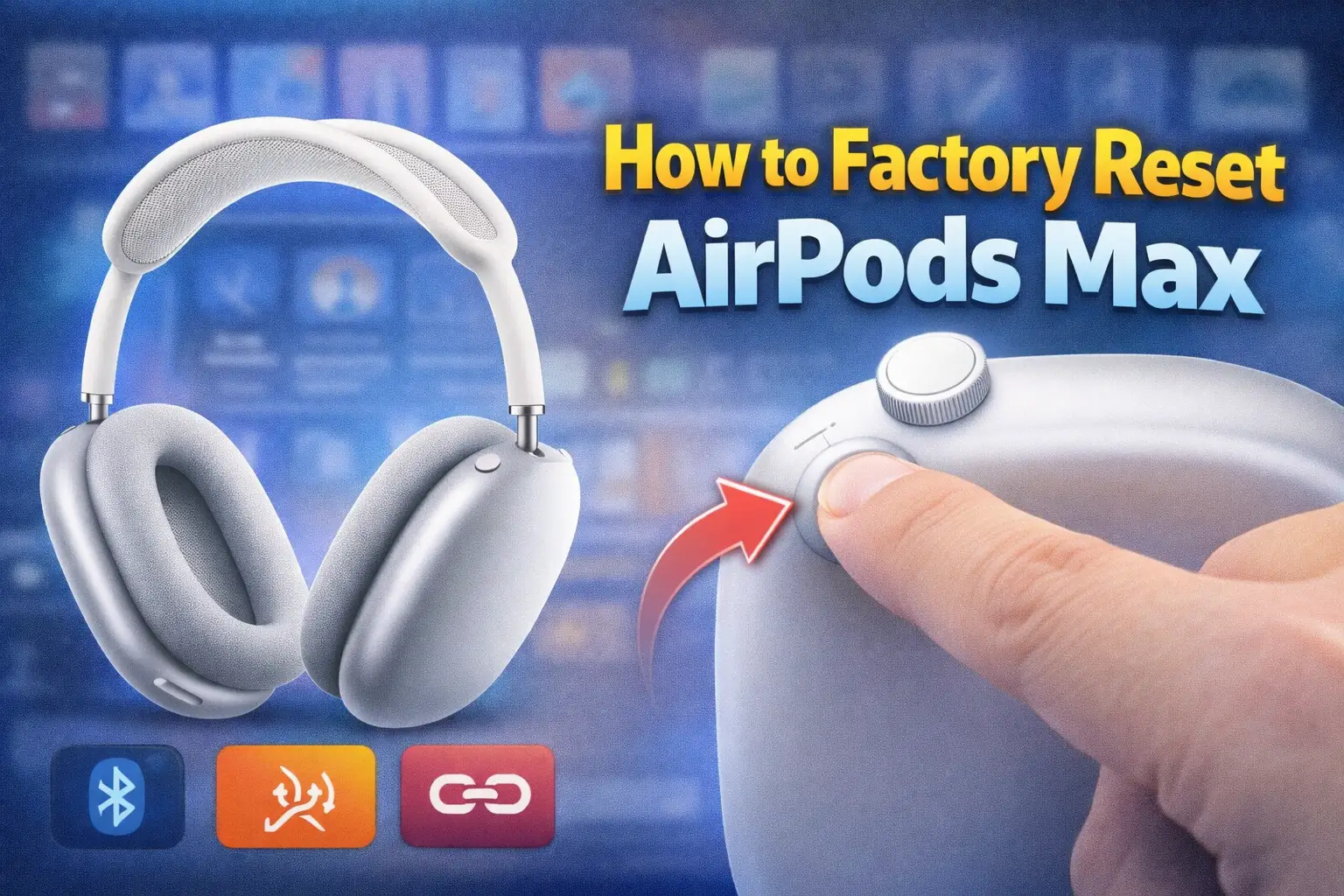
How to Factory Reset AirPods Max
AirPods Max are Apple’s premium over‑ear headphones, known for their excellent sound quality, noise cancellation, and smooth connection with Apple devices. Even though they work very well most of the time, AirPods Max can sometimes face problems such as connection issues, sound glitches, charging problems, or pairing errors. When these issues do not go away with simple fixes, a factory reset is often the best solution.
It explains what a factory reset is, when you should reset AirPods Max, how to reset them step by step, and what to do after resetting. By the end of this article, you will fully understand how to factory reset AirPods Max and use them properly again.
What Does Factory Reset Mean for AirPods Max
A factory reset means restoring AirPods Max to their original settings, just like when they were new. When you factory reset AirPods Max, all saved connections and settings are erased. They forget every device they were previously connected to.
After a factory reset, you need to pair AirPods Max again with your iPhone, iPad, Mac, or any other Bluetooth device. A factory reset does not harm your headphones. It is a safe process designed by Apple to fix common problems.
When Should You Factory Reset AirPods Max
You do not need to factory reset AirPods Max often. However, it is very useful in certain situations.
You should factory reset AirPods Max if:
They are not connecting to your iPhone or other devices Sound keeps cutting out or does not play at all Noise cancellation or transparency mode is not working AirPods Max keep disconnecting Battery percentage is not updating correctly You want to connect them to a new device You are selling or giving away your AirPods Max
In many cases, a factory reset quickly fixes these problems.
Difference Between Restart and Factory Reset
AirPods Max have two levels of reset: a soft reset and a factory reset.
A soft reset refreshes the connection and fixes small issues. A factory reset completely erases all saved data and settings.
If a simple restart or reconnection does not solve the issue, a factory reset is recommended.
Things to Do Before Factory Resetting AirPods Max
Before you factory reset your AirPods Max, try these basic checks. Sometimes, they can fix the issue without resetting.
Make sure AirPods Max have enough battery Charge them for at least 15 minutes Turn Bluetooth off and on again Restart your iPhone or device Update your device to the latest software
If the problem still continues, you can safely proceed with a factory reset.
How to Factory Reset AirPods Max Step by Step
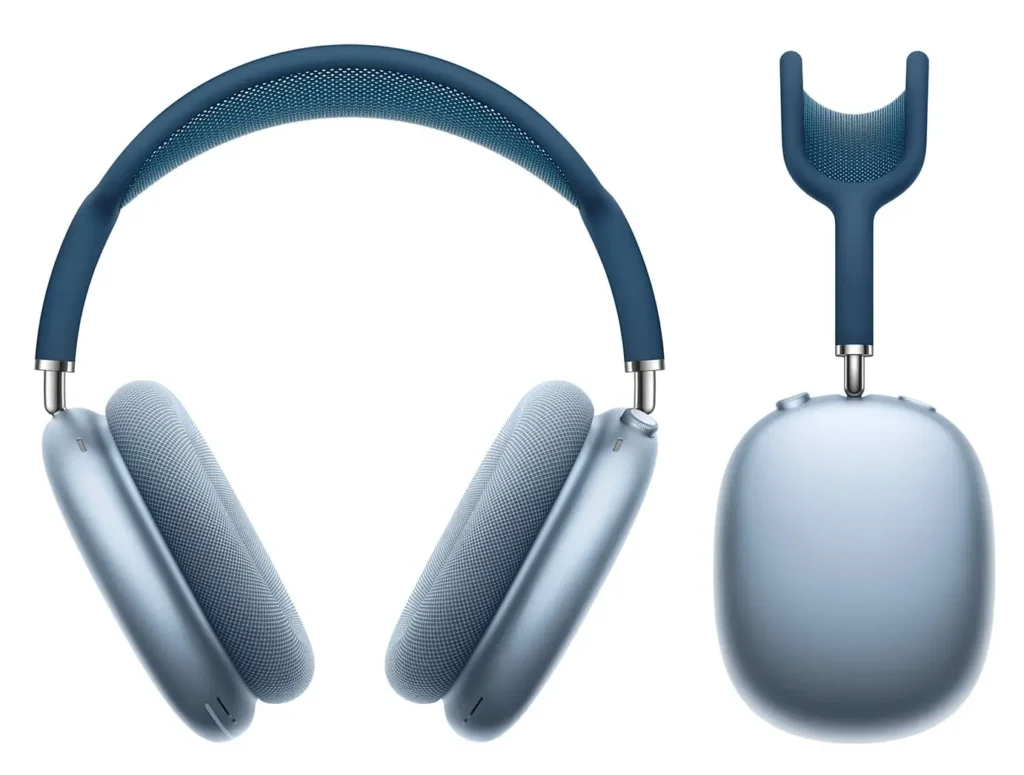
Factory resetting AirPods Max is slightly different from resetting regular AirPods, but it is still easy.
First, make sure your AirPods Max are not inside the Smart Case. Keep them outside and powered on.
Now, locate the two buttons on the right ear cup. One is the Digital Crown, and the other is the noise control button.
Press and hold both the Digital Crown and the noise control button at the same time.
Keep holding both buttons for about 15 seconds.
You will see the status light near the charging port change colors. First, it will flash amber, and then it will flash white.
When the light flashes white, release both buttons. This means your AirPods Max have been factory reset successfully.
Your AirPods Max are now restored to factory settings.
How to Reconnect AirPods Max After Factory Reset
After resetting, you need to pair AirPods Max again with your device.
To connect with an iPhone or iPad:
Turn on Bluetooth on your device Bring AirPods Max close to your iPhone A setup animation will appear on the screen Tap Connect and follow the instructions
To connect with other devices like Android phones or Windows computers, open Bluetooth settings and pair AirPods Max manually.
How to Factory Reset AirPods Max Without an iPhone
You do not need an iPhone to factory reset AirPods Max. The reset process works using the buttons on the headphones.
Even if you are using a different device, you can reset AirPods Max by pressing and holding the Digital Crown and noise control button.
After the reset, you can pair them with any Bluetooth-enabled device.
Common Problems Fixed by Factory Resetting AirPods Max
Factory resetting AirPods Max can solve many common issues.
Connection problems often disappear after a reset. If AirPods Max were not appearing in Bluetooth settings, resetting helps.
Sound issues such as no audio, distorted sound, or unbalanced volume can be fixed.
Problems with noise cancellation or transparency mode may also improve after a factory reset.
Battery display issues, where the percentage does not update correctly, are sometimes fixed.
What to Do If Factory Reset Does Not Work
If a factory reset does not solve the problem, try these additional steps.
Charge AirPods Max fully Clean the charging port gently Try connecting to a different device Update your device software
If problems still continue, the issue may be related to hardware or battery wear. In that case, contacting Apple Support is recommended.
How to Clean AirPods Max Properly
Keeping AirPods Max clean helps prevent sound and connection problems.
Use a soft, dry cloth to clean the ear cups Remove ear cushions carefully and clean them gently Do not use water directly on the headphones Keep the charging port clean
Proper cleaning improves performance and comfort.
Battery Issues and Factory Reset
AirPods Max battery performance may decrease over time.
If your AirPods Max drain quickly even after a factory reset, the battery may be aging.
A reset can fix software-related battery issues, but it cannot repair physical battery wear.
Factory Reset Before Selling or Giving Away AirPods Max
If you plan to sell or give away your AirPods Max, factory resetting is very important.
It removes your Apple device connection and ensures the new user can set them up easily.
Always factory reset AirPods Max before transferring ownership.
How Long Does Factory Reset Take
The factory reset process usually takes less than one minute.
The full process, including reconnecting, may take two to three minutes.
It is quick and simple but very effective.
Frequently Asked Questions About Factory Resetting AirPods Max
Many users have common questions about AirPods Max factory reset.
Does factory reset delete firmware No, it only removes settings and connections
Do I need internet to reset AirPods Max No, internet is not required
Can I reset AirPods Max multiple times Yes, resetting does not damage them
Does factory reset fix microphone issues In many cases, yes
Tips to Avoid Frequent Factory Reset
To reduce the need for frequent resets:
Keep AirPods Max charged Store them properly Avoid using them with very low battery Update your devices regularly Disconnect them properly
Good care helps maintain smooth performance.
Final Thoughts
Factory resetting AirPods Max is a simple and powerful way to fix many common problems. Whether you are facing connection issues, sound problems, or preparing to give your headphones to someone else, a factory reset helps restore them to a fresh state.
By following the steps in this guide, even a beginner can factory reset AirPods Max easily. With simple English explanations and clear instructions, this article is designed to help every user understand and perform the process without confusion.
With proper care and correct usage, AirPods Max can continue to deliver excellent sound and comfort for a long time.
Read: How to Reset AirPods 1